

Viewer guide
How to find and read test results in the Orbit Console when you look at quality but do not run tests yourself: runs, results, reports, releases and their readiness, shared links and notifications.
Who this is for
Section titled “Who this is for”- Viewers: project members who follow the results, for example product owners, project managers and customer contacts.
- Stakeholders who only receive a share link to a report. They need no account; see Read a shared report link.
- Every other role reads results the same way, so this page is useful to QA Engineers and QA Leads too.
A Viewer can see everything on the project but cannot start, change or delete anything. People and roles has the full table.
Before you start
Section titled “Before you start”- You can sign in to the Console. If not, read Getting started first.
- You are on at least one project. Choose it in the project switcher at the top of the page. Every page shows that project.
- Most figures have an info icon. Choose it for “How is this computed?”. The figures themselves are explained in Quality figures explained.
See where the project stands
Section titled “See where the project stands”Open Home. The top shows what is Running, Failing and Quarantined now, and the current Cycle. The cards below answer the usual questions:
- Quality pulse: the health of the last 7 days.
- Release countdown: the next release and how close it is to ready.
- Failure radar: open failure groups, and which are past their deadline or have no owner.
- Recent runs and Environments and Stations: what ran lately and which environments are up.
For more detail, open Quality in the menu. Its tabs are Health, Coverage, Performance and Debt. Read the label of each figure: it always says over which period it counts, for example “7 days (project days)” or “this cycle”. Two figures with different labels can disagree and both be right; Quality figures explained says why.
Find a run
Section titled “Find a run”- Open Executions (menu group Run). It lists the runs of your project, newest first, 50 per page.
- Narrow the list with the filters: workload, environment, result (Passed, Failed, Error, Flaky, No tests, Running), From and To dates, and Mine for runs you started. All projects shows the runs of every project you are on.
- The columns show the Run number, Workload, Revision (the commit), Result (passed of total), Environment, Profile, Duration, Triggered by, Station and Started.
- Export CSV downloads the list as it is filtered.
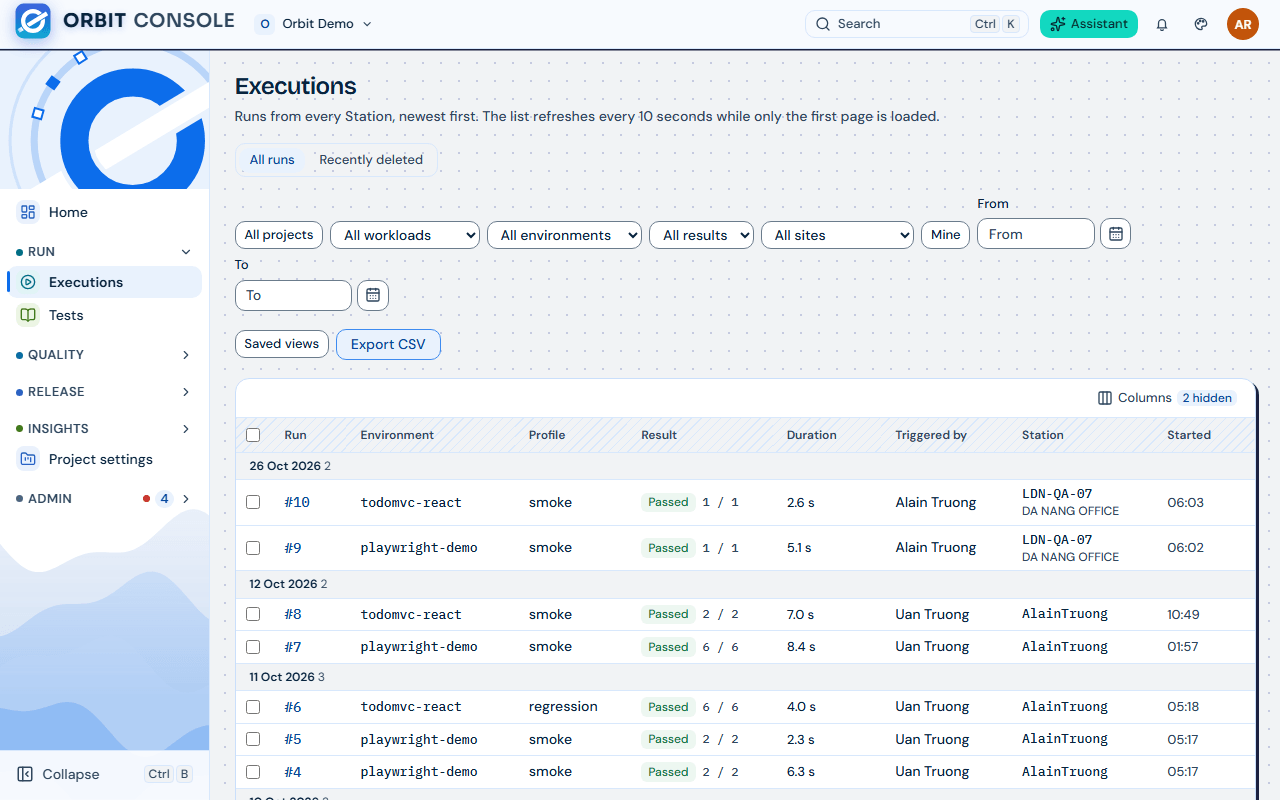
A result of Error means the run stopped before its tests could run, for example because a variable was missing. It is a setup problem, not a test failure.
Read one run
Section titled “Read one run”Choose a run in the list. The run page shows:
- The result bar: how many tests passed, failed, were flaky (failed, then passed on a retry), skipped, did not finish or are quarantined.
- The tests of the run. Choose a test to see its error, its screenshots and, when it was retried, each of its Attempts.
- Open HTML report: the full Playwright report.
- Open trace in Trace Viewer and Watch video, when the run kept them. Traces, screenshots and videos are deleted after the project’s retention period; the results stay.
- Marks such as Overridden (someone changed the run options, so the run is left out of quality figures; see Station run features) and Ran offline (the Station ran without reaching the Console and sent the results later).
- The run’s actions menu (⋯) has Station log (the log the Station wrote) and Compare (put this run side by side with another).
Follow one test
Section titled “Follow one test”Open Tests (menu group Run). Type in Search tests, then choose the test to see its latest results across runs and environments. Use this to answer “has this test been failing for long?”.
Read failures and flaky tests
Section titled “Read failures and flaky tests”- Failures groups failing tests by their error. Each group has an owner, a status and a deadline counted in business days. As a Viewer you can read the groups and their history; QA Engineers do the triage.
- Flaky lists tests that pass and fail without a change, and the tests in quarantine. A quarantined test still runs but does not count in the quality figures.
Check a release
Section titled “Check a release”-
Open Releases (menu group Release) and choose a release.
-
The release page has the tabs Readiness, Scope, Matrix, Cycles and Record:
Tab What you read there Readiness The verdict at the top (Blocked, In progress, Ready or Ready with risks) and, when blocked, the list of what blocks it. Scope Which workloads, suites, tags and requirements the release covers. Matrix The Test matrix: each test of the scope and its result per cycle. Download CSV saves it. Cycles The test cycles of the release (for example one per regression round) and their completion. Record Decisions and approvals, and the Evidence packs: frozen copies of the release at a decision, with Download ZIP and Print or save as PDF. -
What each verdict and each blocking item means is explained in Quality figures explained.
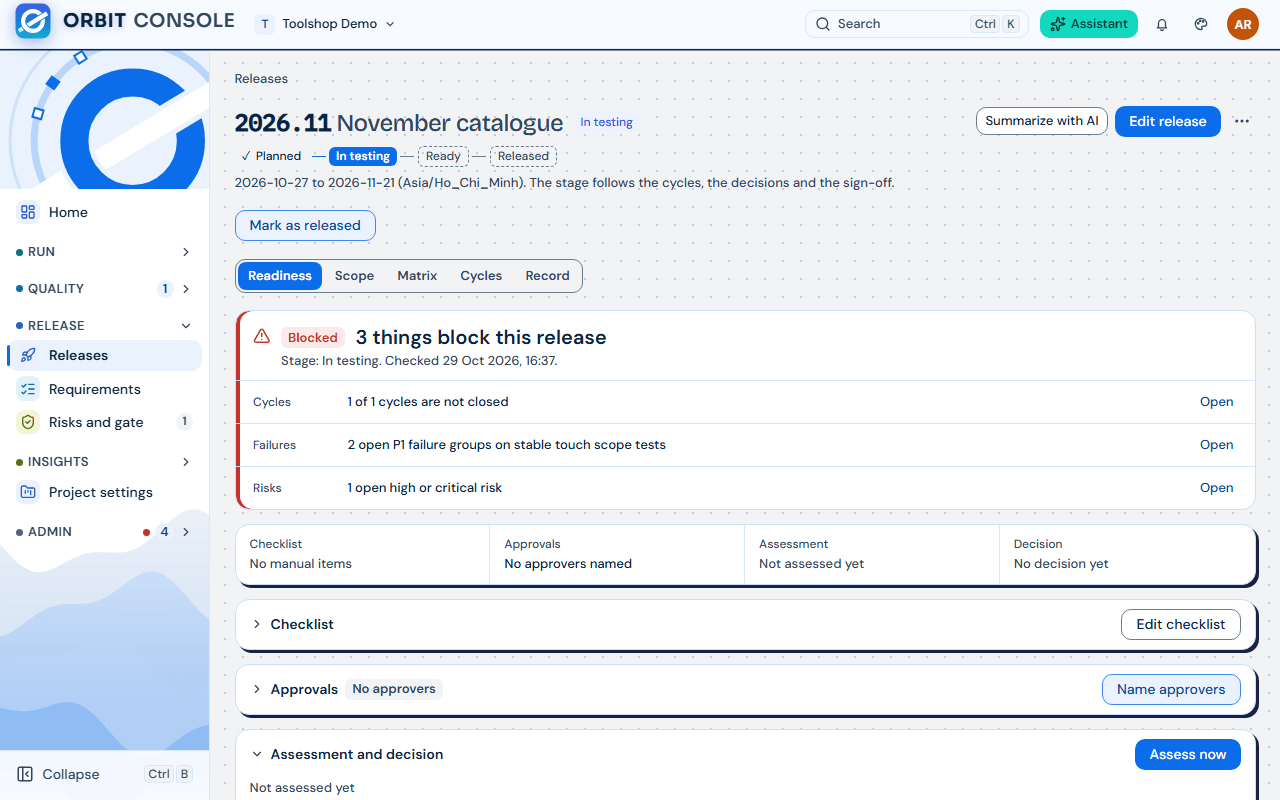
Requirements shows which requirements are covered by passing tests, and Risks and gate shows the open risks and the quality gate of the project.
Read and export a report
Section titled “Read and export a report”- Open Reports (menu group Insights). It has the tabs Generate, Saved and Schedules.
- On Generate, pick the kind of report:
- Summary: health, pass rate, new and persistent failures, gate, releases and risks.
- Quality: failing, persistent and flaky tests, risks and the slowest tests.
- Release: readiness, decision, regression cycles and risks of one release (choose the Release).
- Personal: about your own work; it is not saved or shared.
- Choose the Period (last 1, 7, 14, 30 or 90 days) and the environments, then Generate report.
- Export report saves it as Print or PDF, Markdown, CSV or JSON. A generated report is not stored: export it if you want to keep it.
- Saved lists the reports a QA Lead saved to the project. A saved report keeps what it said on that day; saved reports are kept 180 days.
Saving reports, schedules that build a report every day or week, and share links are for QA Leads and above. Ask one if you need a report saved or shared.
Read a shared report link
Section titled “Read a shared report link”Someone may send you a link to one saved report. Anyone with the link can read it without signing in, until it expires (after 1, 7 or 30 days, as the sender chose). The link shows only that report, never the rest of Orbit.
- Open the link. The page says when the report was saved and until when the link works.
- Print or PDF saves a copy.
- If you see “This report is not available”, the link does not exist, has expired or was revoked. Ask the person who sent it for a new one.
The person who made the link can see how many times it was opened, and can Revoke it at any time.
Choose your notifications
Section titled “Choose your notifications”- Choose the bell at the top right to see your latest notifications and the Notices of the installation. Mark all read marks them all as read.
- All notifications and settings opens Notifications, with the views Inbox and Settings.
- On Settings, the table Notify me about has a row per kind of notification, with a column In Orbit and a column By email. For some kinds you choose All or Only mine (runs you started, tests and failure groups you own, quarantine entries you own).
- Emails go to your Orbit account address. Repeats within 15 minutes are folded into one. If email is not set up yet, the page says so.
Kinds a Viewer usually keeps: New errors in my projects, Tests quarantined or released, My account and access, and Release approvals asked of me, and verdicts on my decisions if you approve releases.
Ask the Assistant
Section titled “Ask the Assistant”Choose Assistant at the top right to ask a question about the page you are on, for example “why is this release blocked?”.
What can go wrong
Section titled “What can go wrong”| You see | Why | What to do |
|---|---|---|
| A page is empty or says “You are not on a project yet.” | You have no role on the chosen project. | Pick another project in the switcher, or ask a Project Admin to add you. |
| A button is greyed out with “Needs the qa-engineer role” (or another role) | Viewers cannot change anything. | Ask someone with that role, or ask a Project Admin for the role. |
| The Station says “all passed” but Quality › Health says Watch, or a release says Blocked | The figures count different things over different periods. Watch is a Health status (Healthy, Watch, Critical) over the last 7 days; Blocked is a release verdict (Blocked, In progress, Ready, Ready with risks). | Read Quality figures explained. |
| Open HTML report or the trace is missing on an old run | The run’s files were deleted after the retention period. The results stay. | Read the results on the run page. |
| A run you expected is not in Executions | A filter is on, or the Station has not sent it yet (it ran offline). | Clear the filters. Offline runs appear when the Station reconnects. |
| “This report is not available” on a share link | The link expired or was revoked. | Ask the sender for a new link. |
| You get too many emails | Every kind is on by email. | Turn off By email for the kinds you do not need, or choose Only mine. |
Related guides
Section titled “Related guides”- Getting started: signing in, the menu, the shortcut sheet.
- Quality figures explained: every figure, its period, and why two pages can disagree.
- People and roles: what each role can do and who to ask.
- FAQ: short answers to common questions.