

Reset test data
A test data reset removes the run history of a whole project, of one environment or of one workload, and keeps everything you set up. Use it to start clean, for example before go-live.
Who this is for
Section titled “Who this is for”- Project Admins, for the projects they manage. They can reset Test history only.
- System Admins, on every project. They can also remove the release records of a project, or remove a project or an environment from Orbit. Those removals have their own guide: Remove a project or an environment.
QA Leads, QA Engineers and Viewers cannot reset data. They see the banner while a reset runs (see “What other people see”).
When to reset
Section titled “When to reset”- A pilot or a trial ended. The pilot runs would mix with the real ones. Reset the project, then start fresh.
- Demo data. A demo project collects runs nobody needs. A System Admin can reset every project of a demo customer at once (see “Reset demo data”).
- Before go-live. Clear the trial runs so the first figures of the live project are real.
- An environment was refreshed. Its old runs no longer say anything about the system. Reset only that environment.
- Old history only. Keep recent runs and remove the older ones with the date Only runs that started before.
Do not use a reset to hide one bad run. Delete that run on its own page instead (Delete run…).
What each role can do
Section titled “What each role can do”| Level (as shown) | What it removes | Project Admin | System Admin |
|---|---|---|---|
| Test history | Runs, results, files and failure groups of the scope. Configuration and releases stay. | yes | yes |
| History and release records | Test history, plus every release, requirement, risk, gate and investigation of the project. | no | yes |
| Everything (remove the project) or (remove the environment) | The project, or one environment, with everything in it. | no | yes |
The last two levels are removals. They are described in Remove a project or an environment. The rest of this page is about Test history.
On the Access page the permission is called “Reset test data of a project”.
Before you start
Section titled “Before you start”- Choose the project in the project switcher at the top of the page.
- The project, and the environment or workload you want to reset, must not be archived. An archived scope answers “The project, or the environment or workload chosen, is archived. Restore it first.”
- Only one reset runs per project at a time.
- Files (reports, traces, videos and screenshots) are not in the export. If you need some of them, download them from the runs before the purge.
- Tell your team. Their runs leave every list as soon as you confirm.
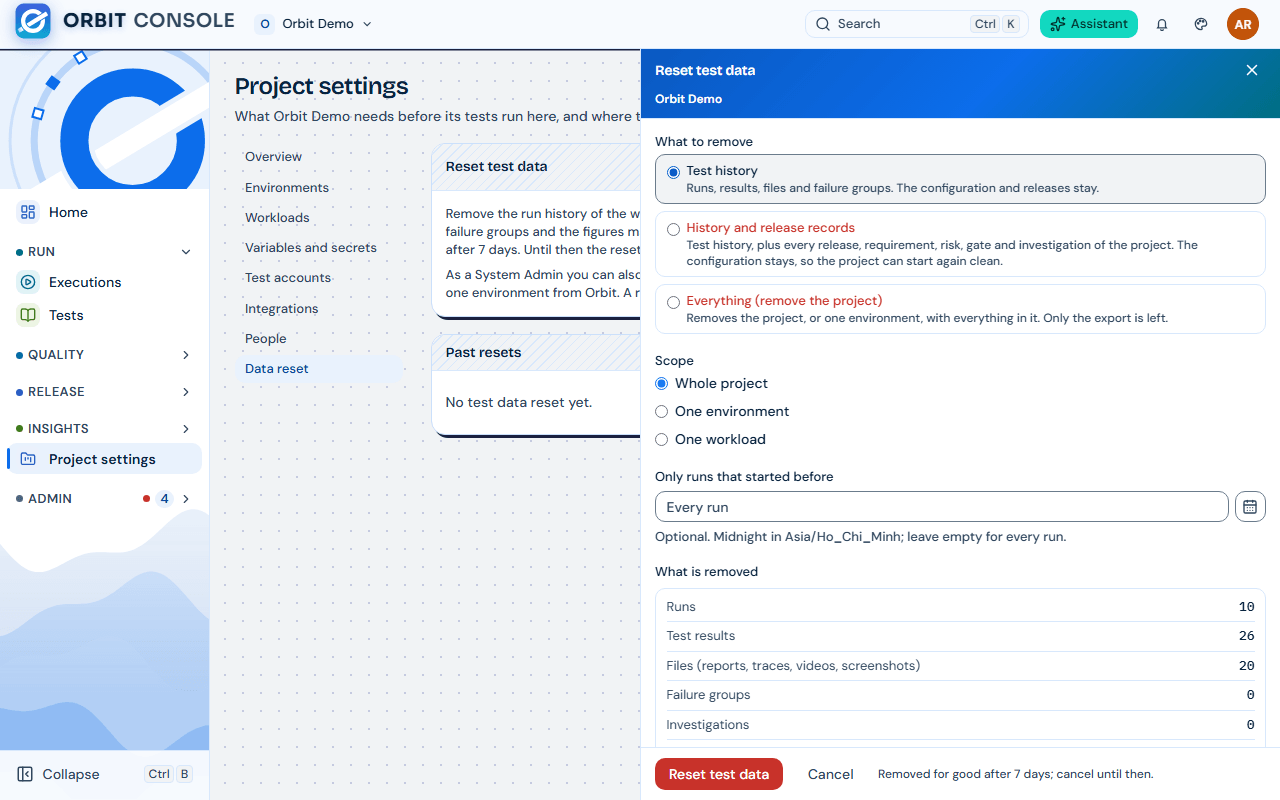
- Open Project settings, section Data reset. Shortcuts open the same place with the scope already chosen:
- Project settings, Overview, box Test data: Reset test data… (whole project).
- Project settings, Environments, Edit on an environment, then Reset test data of this environment… at the bottom.
- Project settings, Workloads: Reset test data… on a workload card.
- Choose Reset test data… (a System Admin sees Reset or remove…). The Reset test data sheet opens.
- A System Admin sees What to remove first. Keep Test history.
- Under Scope, choose Whole project, One environment or One workload. For one environment or workload, pick it in the list (Choose an environment, Choose a workload).
- Optional: set Only runs that started before. It counts from midnight in the project’s time zone. Leave it empty for every run.
- Read What is removed. Orbit counts each kind it would remove (runs, test results, files with their size, failure groups and more). Read What is kept under it.
- Choose a Reason:
- Pilot or trial ended
- Environment was refreshed
- Demo data
- Other (then the Note is required)
- Optional: write a Note (up to 500 characters). It is “Kept with the reset and in the audit log.”
- Leave Create an export (zip, downloadable for 7 days) ticked if you want a copy of the runs and results. Untick it if you do not.
- Type the project name in Type
to confirm , exactly as shown. - Choose Reset test data. A message says “Test data reset started” and that the scope “leaves every list now and is removed for good after 7 days.”
Example: the pilot of the project Toolshop Retail ended. Choose Whole project, leave the date empty, reason Pilot or trial ended, keep the export, type Toolshop Retail, choose Reset test data.
What is removed and what is kept
Section titled “What is removed and what is kept”Removed, for the scope you chose:
- runs, test results, attempts and their files (reports, traces, videos, screenshots);
- failure groups and error signatures that have no result left;
- the daily figures made from those runs (they are rebuilt from what remains);
- AI diagnoses about the removed runs, investigations with their evidence;
- test account leases, environment health samples and incidents;
- notifications that point to a removed run.
Only for a whole-project reset: report snapshots and their share links, gate evaluations and readiness assessments that no release decision rests on, and the test debt history. These do not belong to one environment or workload.
Always kept:
- the configuration: environments, workloads, variables, secrets, run grants and test accounts;
- the test catalog with its owners;
- active quarantine entries and quarantine proposals;
- releases, cycles, decisions, approvals and evidence; requirements, risks, gate policies and report schedules;
- integrations (Jira, Teams) and Jira issue links to tests that remain;
- the audit log and the usage figures.
Releases without a decision: the runs in their cycles are removed. The release and its cycles stay, and their progress goes back to 0.
Flaky statistics are made from runs, so they start again. Tests already in quarantine stay in quarantine.
What happens next
Section titled “What happens next”A reset goes through these states. The State chip shows the words in bold.
- Leaving the lists: Orbit marks every run of the scope. A bar shows “
of runs out of the lists”. - Building the export: only when you asked for the export.
- Waiting to be removed: the grace period of 7 days. Removed on shows the date and how many days are left.
- Removing: Orbit purges the runs, their files and the derived data. This runs in the background once an hour.
- Removed: the reset stays in Past resets with its counts. It is never deleted.
The 7 days start once the runs are out of the lists and the export is built. Until then Removed on says “Set once the runs are out of the lists and the export is built”.
Teams keep testing. Runs that start after you confirmed (or after the date you chose) are not touched. A run that started before and reaches the Console later, for example from a Station that was offline, is removed with the reset.
Cancel a reset
Section titled “Cancel a reset”You can cancel during Leaving the lists, Building the export and Waiting to be removed.
- Open Project settings, Data reset.
- Choose Cancel reset…, then Cancel reset in the dialog (“Cancel this reset?”).
- A message says “Reset cancelled”. Figures update within 15 minutes.
The runs come back in every list and figure. Runs that someone deleted by hand before the reset stay deleted, and are purged 30 days after their own deletion.
Once the state is Removing or Removed, the reset cannot be cancelled: “This reset can no longer be cancelled: removal has started or it has ended.”
The export
Section titled “The export”- The zip holds
executions.csv,results.csv(test, status, duration, error message, signature),failure-groups.csv,releases.csv(cycles and progress),audit.csvfor the scope andmanifest.json(scope, level, counts, who and when). - It holds no files: no reports, traces, videos or screenshots. They stay readable on the runs until the purge.
- Choose Download export on the active reset, or Download in Past resets. The link opens in a new tab and works for 10 minutes; choose the button again for a new link.
- The export of a test history reset can be downloaded for 7 days after it was built. Then the Export column says Expired.
- If the export becomes larger than 150 MB, or a part of it goes missing, Orbit cancels the whole reset. Nothing is removed without the export you asked for. Past resets shows why, for example “Cancelled: the export was larger than 150 MB. Narrow the scope with ‘Only runs that started before’.”
Purge now
Section titled “Purge now”A System Admin can end the grace period early, for example to free storage at once.
- It is only offered when the reset was made with an export and the export is ready. A reset without an export always waits the full 7 days.
- It needs the authenticator verified in this session (see People and roles).
- On the active reset, in the danger box, choose Purge now….
- Read the dialog (“Remove the data now?”), type the project name and choose Purge now.
- A message says “Removal started”. The data is removed for good within the hour. It can no longer be cancelled.
Project Admins do not see Purge now…. Ask a System Admin.
What other people see meanwhile
Section titled “What other people see meanwhile”- A banner on every page of the project, for every member: “Test data reset in progress.” with the scope and the date, for example “Test data of the environment QA leaves every list now and is removed on 5 November 2026.” Project Admins and System Admins also get View, which opens Data reset.
- Lists and figures: the runs of the scope disappear at once from Executions, Tests, Quality, Failures, Flaky, Releases and Reports. Figures are rebuilt from the runs that remain.
- Recently deleted (on Executions, for QA Engineers and up): the runs are listed with Reason “Data reset” and Purge “With the data reset”, which links to the reset. They have no Restore button. Only Cancel reset… brings them back.
- Stations hide the runs too, then drop their local copy after the purge. No Station update is needed.
Reset demo data
Section titled “Reset demo data”For a demo customer, a System Admin can reset every project at once.
- Open Admin, Projects and customers, tab Customers.
- On a demo customer’s row, choose Reset demo data….
- Type the customer name, for example
Demo Customer, and choose Reset demo data.
Each project gets its own Test history reset with reason Demo data and no export. A project that cannot be reset now is named in the message, for example “Orbit Demo: a reset is already in progress”. Each reset can be cancelled in its project’s Data reset section.
All resets of the installation
Section titled “All resets of the installation”System Admins see every reset, with its progress and export, on Admin, Projects and customers, tab Data resets. The page needs the authenticator. Starting, cancelling and downloading are done in the project’s Data reset section.
What can go wrong
Section titled “What can go wrong”| You see | Why | What to do |
|---|---|---|
| “Runs in this scope are release evidence”, with a list of releases | Those releases have a recorded decision. Their runs are locked as evidence and are never reset. | Narrow the scope (one environment or workload) or set Only runs that started before to a date before those runs. A System Admin can also remove all release records with History and release records, see Remove a project or an environment. |
| “Another reset of this project is in progress. Wait for it to end or cancel it first.” | One reset per project at a time. | Wait until the active reset shows Removed, or cancel it. |
| “The project, or the environment or workload chosen, is archived. Restore it first.” | An archived scope cannot be reset. | Restore it first (Project Admins: ask a System Admin for an archived project). |
| “The name typed does not match. Type it exactly as shown.” | The confirmation must match the project name exactly. | Type it again, with the same capitals and spaces. |
| One environment or One workload cannot be chosen | The project has none, or they are all archived. | Choose Whole project, or restore the environment or workload. |
| Purge now… is missing | You are not a System Admin, the reset has no export, or the export is not ready yet. | Wait for the export, or let the grace period end. |
| “Verify your authenticator first” | Purge now needs the authenticator in this session. | Choose Verify now, enter the code, try again. |
| “ |
A release decision was recorded during the grace period. Those runs are now evidence. | Nothing to do: the runs stay. Narrow a later reset if needed. |
| Download export is missing on an old reset | The export expired after 7 days, or no export was asked for. | It cannot be made again after the purge. |
| The figures still show the old runs | The figures are rebuilt in the background. | Wait up to 15 minutes, then reload. |
Values to record
Section titled “Values to record”| What | Where you find it | Keep it |
|---|---|---|
Export zip (orbit-data-reset-<project>-<date>.zip) |
Download export on the reset | In your team’s document store, if you asked for an export. It is gone after 7 days. |
| Date of the purge | Removed on on the active reset | Tell the team before that date. |