

Remove a project or an environment
Remove a project or one environment from Orbit for good, or clear all release records of a project so it can start again clean. The export you download is the only record left.
Who this is for
Section titled “Who this is for”System Admins only, with the authenticator verified in the current session. Project Admins can reset test history only: see Reset test data.
Which level to choose
Section titled “Which level to choose”A removal is a data reset at one of two levels. You choose the level in the What to remove box of the sheet.
| Level (as shown) | Scope | What happens | Typical use |
|---|---|---|---|
| History and release records | Whole project only | Test history, plus every release, requirement, risk, gate and investigation of the project. The configuration stays. | A pilot is over and the project goes live: keep the setup, start with no history and no records. |
| Everything (remove the project) | Whole project | The project with everything in it: configuration, tests, releases, people roles and history. | A customer contract ended. |
| Everything (remove the environment) | One environment | The environment with its runs, cycles, risks, investigations and test accounts. The project, its other environments and its workloads stay. | An environment is gone for good. |
Neither level takes a date: a removal covers every run of the scope. A workload cannot be removed this way. Reset its test history (see Reset test data), then delete the workload on Project settings, Workloads.
Archive or remove? Archiving hides a project or environment and can be undone at any time. It keeps all history. Choose a removal only when the data itself must go.
Before you start: the offboarding checklist
Section titled “Before you start: the offboarding checklist”- Agree the date with the customer or the project owner, and tell the people of the project.
- Let running tests end. The project or environment is archived as soon as you confirm, so Stations stop offering it and no new run starts.
- Save the files you need. The export holds no reports, traces, videos or screenshots. Download the ones you must keep from the runs before the purge.
- Check the releases. For an environment: a release with a recorded decision that names it blocks the removal (see “Why decided releases block an environment removal”).
- Plan for the people. The preview of a project removal says how many people will have no project left. Decide what happens to their accounts (see “Teams and accounts”).
- Check the authenticator. Every step needs it: preview, request, Cancel, Purge now and the download that counts.
- Have a safe place for the export, such as your organisation’s document store. It is the only record left.
- Open the removal sheet in one of these ways:
- Project: Project settings, Overview, danger zone: Remove project…. Or Project settings, Data reset: Reset or remove… (Remove… on an archived project).
- Environment: Project settings, Environments, Edit on the environment, then Remove environment… at the bottom. For an archived environment, Remove environment… is on its row.
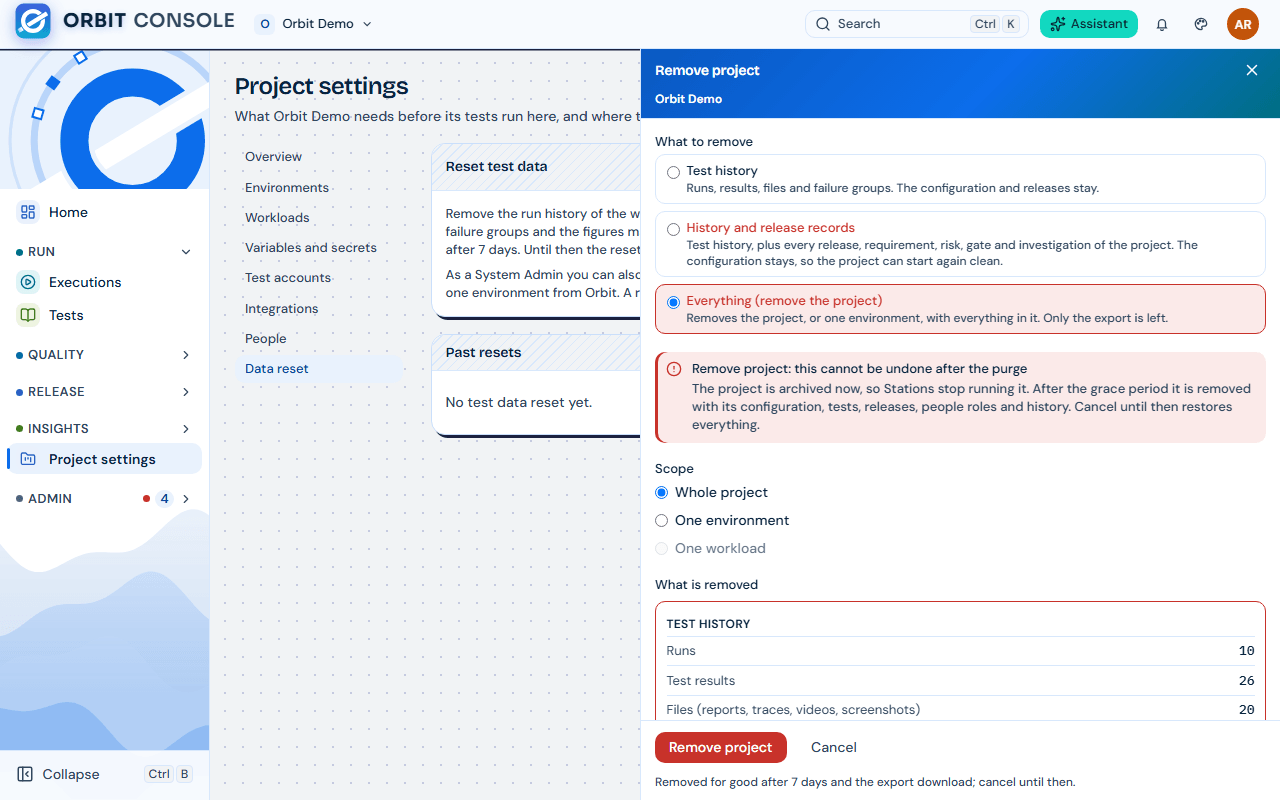
- Under What to remove, check the level. The sheet’s title and its button follow it: Remove project, Remove environment or Remove history and release records.
- Under Scope, check Whole project, or One environment with the environment chosen.
- Read What is removed. It groups the counts under Test history, Release and quality records and Configuration. For a project removal it also says, for example, “3 people will have no project left (their accounts stay).”
- Read What is kept.
- Choose a Reason (Pilot or trial ended, Environment was refreshed, Demo data or Other, which needs a Note).
- Create an export (zip, required for a removal) is ticked and cannot be unticked.
- Type the name to confirm: the project name for a project or its release records, the environment name for an environment.
- Choose the button (Remove project, Remove environment or Remove history and release records). A message says “Removal started”. The project or environment “is archived now and removed for good once the grace period of 7 days is over and the export was downloaded.”
- When the export is ready, choose Download export and store the zip. The removal does not go ahead before this download.
Example: the contract of Toolshop Retail ended. Open Remove project…, keep Everything (remove the project), reason Other with the note “Contract ended”, type Toolshop Retail, choose Remove project, then download the export when it is ready.
What is removed and what is kept
Section titled “What is removed and what is kept”History and release records removes, for the whole project:
- everything a whole-project Test history reset removes (see Reset test data);
- releases with their cycles, decisions, approvals, scope changes, checklists and evidence packs, also the runs locked as evidence;
- requirements, risks, gate policies, gate evaluations and readiness assessments, test debt history;
- every investigation, report schedules and snapshots, share links, quarantine proposals, ended quarantine entries and Jira issue links.
It keeps the configuration (environments, workloads, variables, secrets, test accounts), the test catalog, active quarantine entries, people and their roles, and the audit log. The project stays archived when the removal ends. Restore it on Project settings, Overview, danger zone (Restore…) to start again.
Everything (remove the project) removes all of the above, then the configuration, then the project: environments, workloads, variables, secrets, run grants, the test catalog, every quarantine entry, test accounts, integrations and their rules, saved views, AI diagnoses, assistant conversations and the project’s managed teams. It keeps user accounts, the customer (even with no project left), its sites, the Stations, the audit log and the usage figures.
Everything (remove the environment) removes the environment’s history, its cycles, its risks and investigations, its test accounts, health samples and incidents, and its links, grants, locks, variables and secrets. Releases stay and lose this environment and its cycles. Workloads stay and lose their link to it.
The authenticator
Section titled “The authenticator”Every step of a removal needs a System Admin with the authenticator verified in this session: the preview, the request, Cancel reset…, Purge now… and the download that lets the removal go ahead. Without it you see “Verify your authenticator first” and “
The export
Section titled “The export”The export is required, and it is the only record left after the purge.
- Always:
executions.csv,results.csv,failure-groups.csv,releases.csv,audit.csvandmanifest.json. - Release records: one folder per release under
releases/withrelease.json,decisions.json,approvals.json,scope-changes.json,checklist.jsonand each evidence pack asevidence-<n>.jsonwith its stored hash, so you can prove it was not changed. Alsorequirements.csv,risks.csv,gates.json,investigations.csvandquarantine.csv. - Everything only:
configuration.json(environments, workloads, variable values, run grants; secret names only, never their values),tests.csv(catalog with owners),test-accounts.csv(no passwords) andpeople.csv(name, email, role, team). - An environment removal leaves out
requirements.csv,gates.json,tests.csvandpeople.csv: those records do not belong to one environment and stay. - No files: no reports, traces, videos or screenshots.
Kept 90 days. The zip of a removal never expires while the removal runs. After the removal ends it is kept 90 days. Past resets says until when: “Download it again until
If the export is larger than 150 MB, a part is missing, or an evidence pack no longer matches its stored hash, the export fails. Orbit then cancels the removal and undoes the archive. Nothing is removed.
Why the purge waits for the first download
Section titled “Why the purge waits for the first download”Because the export is the only record left, Orbit does not remove anything until a System Admin has downloaded it once.
- The 7-day grace period starts when the export is built. After it, the removal waits: the state shows Waiting for export download, and the banner says “Download the export to let the removal go ahead.”
- Only a download by a System Admin with the authenticator verified counts. Other managers may download too, but their download does not count (“A System Admin must download the export to let the removal go ahead”).
- After the first download the Export line says “Downloaded on
”, and the purge starts at the end of the grace period. - Purge now… is offered only after that download. It answers “Download the export first: a removal goes ahead only once its export was downloaded.” otherwise.
Changed after the export. If a record that the removal deletes changes after the export was built, Orbit builds the export again before it purges anything. The section shows “Preparing the export again” and the Export line “Being built again: records changed after the first export”. The grace period starts again, and a System Admin must download the new export.
While the removal runs
Section titled “While the removal runs”- The scope is archived. Stations stop offering it and no new run starts. Every run of the scope leaves the lists at once.
- The banner shows on every page of the project for every member, in red, for example “Removal in progress. This project (Toolshop Retail) will be removed on 5 November 2026.” For an environment: “Environment QA will be removed on …”. For release records: “Release records removal in progress.”
- Release records are frozen during a project removal (both levels). A decision, an approval, an evidence pack, a scope change or a new or changed release is refused: “… is refused: this project is being removed by a data reset and its release records are already exported. A System Admin can cancel the removal in Project settings › Data reset.”
- Restore is refused while a removal holds the archive: “A removal of this project is in progress. Cancel it in Project settings › Data reset to restore the project.” (or “… of this environment …”). Cancelling the removal is the only way back, and it restores the archive itself.
- Project Admins still see the Data reset section of the archived project, with the removal and its export. Only System Admins can cancel it.
Cancel a removal
Section titled “Cancel a removal”Until the state is Removing:
- Open Project settings, Data reset.
- Choose Cancel reset…, then Cancel removal (“Cancel this removal?”).
- A message says “Removal cancelled”. Nothing is removed, the runs come back in every list and figure, and the archive the removal made is undone. A project or environment that was archived before the removal stays archived.
Purge now
Section titled “Purge now”- Download the export first (see above).
- In the danger box, choose Purge now…. Type the project name (the environment name for an environment) and choose Purge now.
- Everything the removal covers is removed for good within the hour. It can no longer be cancelled.
Why decided releases block an environment removal
Section titled “Why decided releases block an environment removal”A release with a recorded decision keeps its evidence, and its evidence names the environment it was tested on. Removing that environment alone would leave the release pointing at nothing. So, when a decided release names the environment or has a cycle on it, the sheet shows “Runs in this scope are release evidence” and “These releases have a recorded decision and name this environment, so it cannot be removed. Archive the environment instead, or remove the whole project.”
Your choices:
- Archive the environment. It leaves Stations and lists and keeps the evidence.
- Remove the whole project, or its release records with History and release records. Those levels remove the releases too, with their evidence in the export.
Teams and accounts
Section titled “Teams and accounts”A project removal never deletes a user account, and other projects are not touched.
- The project’s managed teams (the ones Project settings, People keeps per role) are deleted with their memberships.
- Teams made by hand in Admin, People and access, Teams lose their role on this project and keep their other projects.
- The preview counts the people who will have no project left. It counts access through teams only and leaves out System Admins. If the count is above 0: “Deal with them in People: give them another project or remove their access.”
- After the removal, give these people another project on Project settings, People of that project, or follow People account recovery to remove a person for good. See People and roles for teams and roles.
- An environment removal deletes its run grants and test accounts. People keep their roles on the project.
After the removal
Section titled “After the removal”- The removal shows Removed in Past resets of the project (while the project exists) and on Admin, Projects and customers, tab Data resets. A removed project keeps its name there, shown as “
(removed)”. - The audit log keeps every step: request, export download, cancel or Purge now, and the end with its counts.
What can go wrong
Section titled “What can go wrong”| You see | Why | What to do |
|---|---|---|
| What to remove is not shown | You are not a System Admin. | Ask a System Admin. Project Admins can only reset test history. |
| “This level does not fit the scope: release records need the whole project, and only a project or an environment can be removed.” | Release records belong to the whole project, and a workload cannot be removed. | Choose Whole project, or One environment for Everything. |
| “Runs in this scope are release evidence” on an environment removal | A decided release names the environment. | Archive the environment, or remove the whole project. |
| Remove project… is missing on Overview | Another reset of the project is active (“A data reset is in progress: Remove project is back once it ends.”). | Wait for it to end, or cancel it on Data reset. |
| Waiting for export download | The grace period is over and no System Admin has downloaded the export with the authenticator. | Choose Download export after Verify now. |
| You downloaded, but the removal still waits | Your download did not count: you were not a System Admin, or the authenticator was not verified. | Verify the authenticator and download again. |
| “Preparing the export again” | A record changed after the first export. | Wait for the new export, then download it. The grace period starts again. |
| “Cancelled: the export was larger than 150 MB. …” | The export failed, so the removal was cancelled and the archive undone. | Reset the test history first, in smaller parts (see Reset test data), then request the removal again. |
| Ended, not removed with “Not removed: still held by …” | At the last step something still pointed to the project or environment. It stays archived; its configuration may already be gone. | Deal with what is named, then request Everything again on the archived project or environment. |
| Restore is refused with “A removal of this project is in progress.” | The removal holds the archive. | Cancel the removal on Data reset. |
| A release decision or approval is refused during a project removal | Release records are frozen while they are being removed. | Cancel the removal if the project must go on. |
| “Verify your authenticator first” | Every removal step needs the authenticator. | Choose Verify now, enter the code, try again. |
Values to record
Section titled “Values to record”| What | Where you find it | Keep it |
|---|---|---|
Export zip (orbit-data-reset-<project>-<date>.zip) |
Download export on the removal | In your organisation’s document store, for as long as your contract or audit rules require. Orbit keeps it 90 days after the removal. |
| Date of the removal and who requested it | Past resets, or Admin, Projects and customers, Data resets | With the export, as the offboarding record. |
| People left without a project | The preview of a project removal | Until each has another project or was removed. |