

Getting started with Orbit
Your first visit to Orbit, step by step. At the end you are signed in, you know where things are in the menu, and you know which guide to read next for your role.
Who this is for
Section titled “Who this is for”Everyone who has just received an Orbit account: testers, QA leads, admins, stakeholders who read results, and people who write the tests.
Before you start
Section titled “Before you start”- An invitation email from Orbit, or an email address and a password that an administrator gave you in person.
- A current browser (Edge, Chrome or Firefox).
- System Admins only: an authenticator app on your phone, for example Microsoft Authenticator or 1Password.
What Orbit is made of
Section titled “What Orbit is made of”Orbit runs Playwright tests and keeps their results in one place. It has three parts:
| Part | What it is | Who uses it |
|---|---|---|
| Console | The web site. It holds the projects, every run and result, quality figures, releases, reports and the settings. | Everyone |
| Station | A program on a Windows PC that runs the tests. You open it in your browser from the Orbit Station entry in the Start menu. It sends its results to the Console. | QA Engineers and above, who run tests |
| Workload repository | A Git repository with Playwright tests and a file named orbit.workload.yaml. Orbit calls one such repository a workload. |
Workload authors, who write the tests |
A few more words you will see everywhere:
- Project: one testing space, usually for one customer. Your role belongs to a project, so you can be a QA Lead on one project and a Viewer on another.
- Environment: one system under test, for example
devorqas. - Run (also execution): one start of a set of tests on one environment.
- Role: what you may do on a project: Viewer, QA Engineer, QA Lead or Project Admin. A System Admin manages the whole installation. The full table is in People and roles.
1. Accept your invitation
Section titled “1. Accept your invitation”If you got an invitation email:
- Open the link in the email. The page Join Orbit opens.
- Choose Accept the invite.
- On Choose your password, type a New password of at least 12 characters, then the same in Repeat the password.
- Choose Save and continue. You are signed in.
If an administrator set a password for you, skip this step. You can change that password on Profile, Security after your first sign-in.
2. Sign in to the Console
Section titled “2. Sign in to the Console”- Open your Console address. The page Sign in to Orbit opens.
- Enter your Email and Password, then choose Sign in.
- If your account has an authenticator, the page Enter your authenticator code asks for the 6-digit code from your app. The code is sent as soon as the last digit is in.
There is no “forgot password” link. If you lost your password, ask a System Admin: they can set a new one for you.
3. System Admins: set up the authenticator
Section titled “3. System Admins: set up the authenticator”A System Admin must use an authenticator app while the organisation setting Authenticator code is on. It is on unless a System Admin turned it off in Admin, System, Security (see System Admin guide). While it is on:
- After your first sign-in, the page Set up your authenticator shows a QR code.
- Scan it with your app. If you cannot scan it, type the key shown under “Can’t scan it? Enter this key instead:”.
- Enter the 6-digit code the app shows and choose Turn on.
Later, the banner “Admin actions need your authenticator code.” with Enter the code appears when your session needs the code again. More in People and roles. Other people can add an authenticator to their own account on Profile, Security.
4. Choose your project
Section titled “4. Choose your project”The project switcher is at the top of every page, next to the Orbit logo (the Admin pages have none). Choose it, then pick a project, or type a few letters in Find a project. Every page shows the project you chose. If you see “You are not on a project yet.”, ask a Project Admin to add you.
5. Look at Home
Section titled “5. Look at Home”Home is the first item in the menu and the page you land on. The top of the page shows the project at a glance (what is Running, what is Failing, what is Quarantined, and the current Cycle) and a Needs you list. “Nothing needs you right now.” means you are up to date.
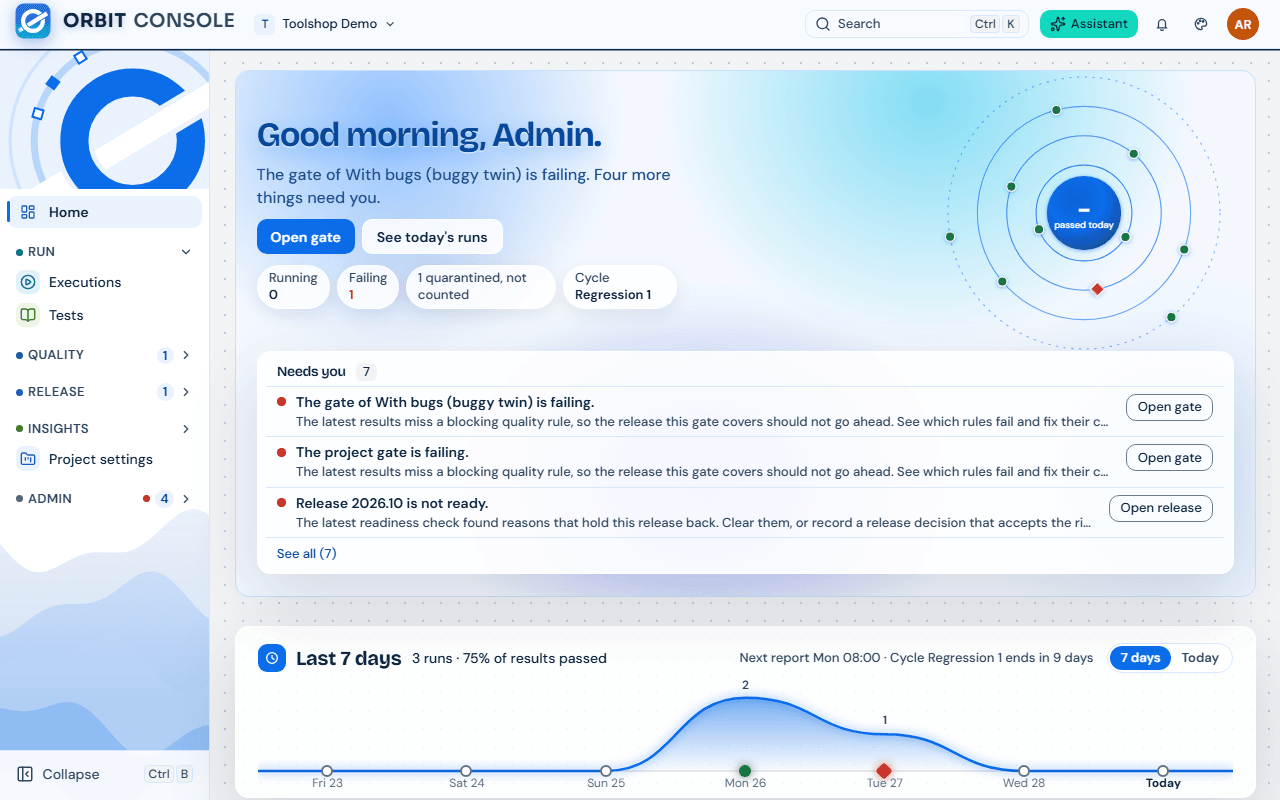
Below that, cards appear one by one. Which cards you see depends on your role:
| Card | What it shows | Who sees it |
|---|---|---|
| Quality pulse | The health of the last 7 days, as on the Quality page | Everyone on the project |
| Release countdown | The next release and how close it is to being ready | Everyone on the project |
| Failure radar | Open failure groups, marked Past SLA or No owner when they need someone | Everyone on the project |
| Orbit noticed | Something unusual Orbit found in the results, with a link to look closer | QA Engineers and above |
| Recent runs | The latest runs | Everyone on the project |
| Environments and Stations | Which environments are up and which Stations are online | Everyone on the project |
| Test debt | The test debt of the project (for example tests with no explicit owner) and how it changed this week | QA Leads and Project Admins |
| What changed | What is new since your last visit | Everyone on the project |
| Projects that need the basics | Projects whose setup is not finished | Project Admins and System Admins |
| Getting started | First steps for a new account | Everyone, while there is something left to do |
The figures are explained in Quality figures explained.
6. Learn the menu
Section titled “6. Learn the menu”The menu is on the left (on a phone, open it with the menu button). It has these groups:
| Group | Pages | What you do there |
|---|---|---|
| Home | Your start page | |
| Run | Executions, Tests | Every run, and every test with its history |
| Quality | Quality, Failures, Flaky | Health, coverage, performance and debt; failure triage; flaky tests and quarantine |
| Release | Releases, Requirements, Risks and gate | Releases and their readiness; requirements and their tests; risks and the quality gate |
| Insights | Reports, Customers | Reports to read, export, save and share; activity per customer |
| Project settings | The setup of the project. Each section says who may open it. | |
| Admin | People and access, Projects and customers, Stations, System | System Admins only |
At the top right you find:
- Search (or Ctrl+K): find pages, records and commands, and switch project.
- Assistant: ask questions about the page you are on.
- The bell: your notifications and the Notices of the installation. All notifications and settings opens the full list.
- Your avatar: Profile, Appearance (theme and density), What’s new, Shortcuts, About Orbit, Terms of use, Status and Sign out.
7. Fill in your Profile
Section titled “7. Fill in your Profile”Open your avatar, then Profile. On Info, add your picture, Display name, Time zone and the other details, then choose Save details. Dates in Orbit use your time zone. On Preferences choose your appearance and which notifications you get. Details: People and roles.
8. Learn the keyboard shortcuts
Section titled “8. Learn the keyboard shortcuts”Press ? on any page (outside a text field) to open Keyboard shortcuts. The sheet lists the shortcuts of the page you are on, by group. You can also open it from your avatar, Shortcuts. Shortcuts do nothing while you type in a field.
On Windows “Ctrl” is the Ctrl key; on a Mac it is ⌘.
In the Console and on the Station
| Keys | What it does |
|---|---|
? |
Show keyboard shortcuts |
| Ctrl+K | Search pages, records and commands |
| Ctrl+B | Collapse or expand the sidebar (not on a phone) |
In the Console, Failures, Triage board
| Keys | What it does |
|---|---|
J / K |
Next test / Previous test |
| Shift+J / Shift+K | Next group / Previous group |
B |
Mark as Bug |
E |
Mark as Environment issue |
F |
Mark as Known flaky |
Q |
Quarantine the test |
O |
Take ownership of the group |
R |
Resolve the group |
I |
Investigate |
X |
Select the test |
| Enter | Open the group detail |
On Project settings, Test accounts, N adds a test account (Project Admins).
On the Station
| Where | Keys | What it does |
|---|---|---|
| Everywhere | N |
Start a run |
| Everywhere | Ctrl+/ | Open or close Ask Orbit |
| Pages with a refresh time (Today, Activity, Coverage, Failures, Insights, Release, Reports, History) | R |
Refresh this page |
| Today | J / K, Enter |
Next / previous item in Needs your attention; open or close the selected item |
| Explorer | / |
Search tests |
| Explorer | A |
Select or clear all shown tests |
| Explorer | Esc | Clear the selection |
| Explorer | Shift+→ / Shift+← | Open / close a group and everything inside it |
| History | J / K |
Next run / Previous run |
| History | Enter / Shift+Enter | Preview the run / Open the run page |
| Failures | / |
Search |
| Failures | J / K, Enter |
Next / previous in the list; open the selected row |
| Failures | O |
Claim or release the group |
| Failures | B / E / F |
Label the test Bug / Environment issue / Flaky-ignore |
| Coverage, Release | / |
Search tests |
| Reports | / |
Search saved reports |
In the Explorer’s test tree, the arrow keys move, → and ← open and close a group, and Space ticks a test.
What you have now
Section titled “What you have now”You are signed in, you know your project and your Home page, and you can find any page from the menu or with Ctrl+K.
Where to go next
Section titled “Where to go next”| Your role | Read next |
|---|---|
| Viewer, stakeholder, or someone who received a share link | Viewer guide |
| QA Engineer (tester) | Install the Orbit Station, then the Tester guide |
| QA Lead | QA lead guide |
| Project Admin | Project admin guide |
| System Admin | System admin guide |
| Workload author (you write the Playwright tests) | Workload author guide |
| Anyone with a question | FAQ |
If something goes wrong
Section titled “If something goes wrong”| You see | What to do |
|---|---|
| “Your email is not confirmed yet. Ask an administrator.” | You have not accepted the invitation yet. Open the invitation email, or ask a System Admin to confirm your address. |
| The invitation link does not work | Ask a System Admin to use Resend invite. |
| “Your account has expired” | Your access ended on its expiry date. Ask a Project Admin on your team, or a System Admin, to extend it. |
| “Your account is deactivated” | An admin turned your account off. Ask a System Admin. |
| You lost your authenticator | Ask a System Admin to reset it. See People account recovery. |
| “You are not on a project yet.” | Ask a Project Admin of the project to add you. |
| A page or a button is missing | Your role does not allow it. See People and roles. |